
Logs
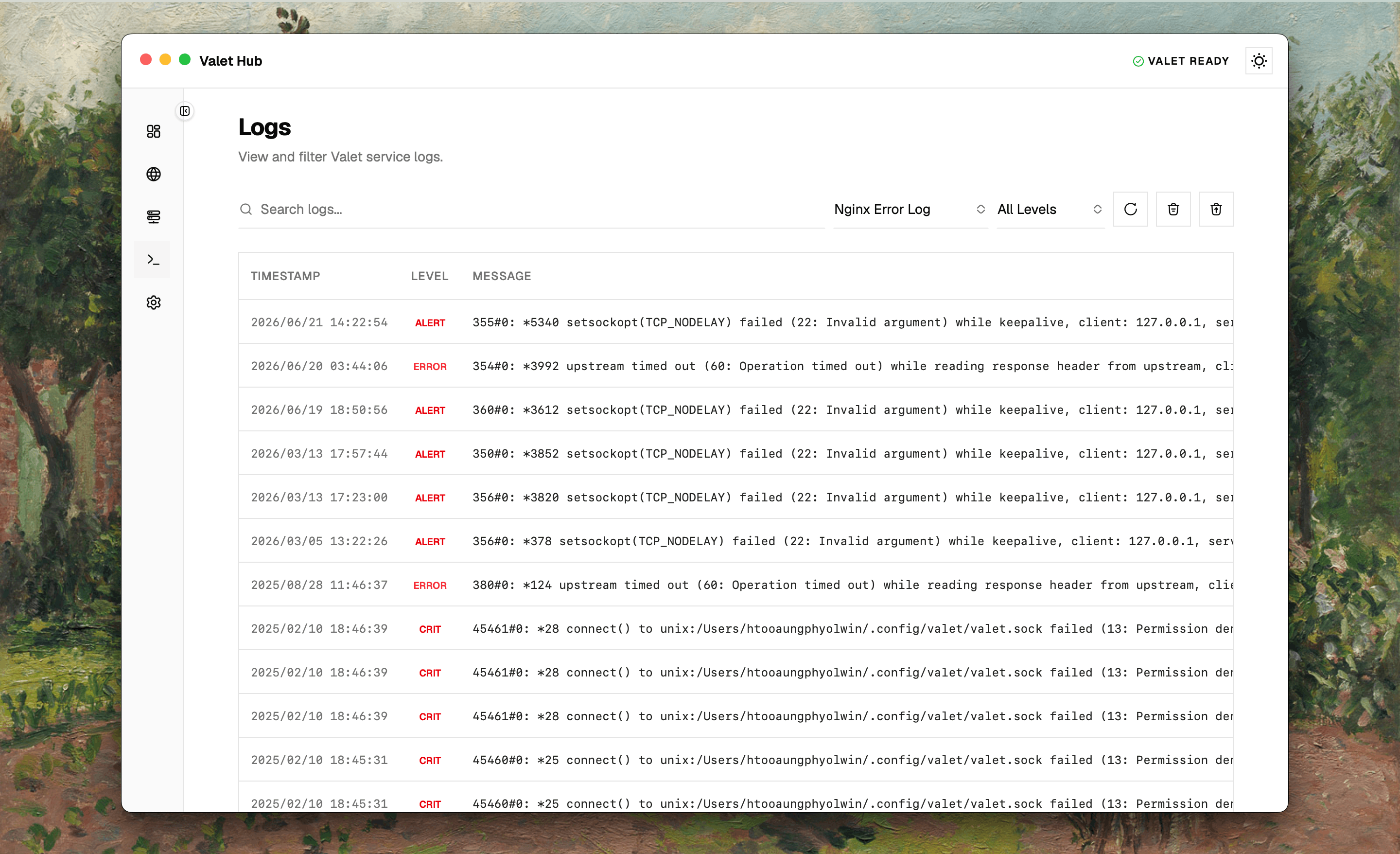
The Logs page brings together logs from every service Valet runs. Whether you're debugging an error that just appeared or watching Nginx traffic in real time, this is where you'll find it.
Choosing a Log Source
Start by picking which log you want to view from the source dropdown:
- Nginx — the Nginx access log.
- PHP — the PHP log.
- Nginx Error Log — Nginx error entries.
- PHP-FPM Log — the PHP-FPM process log.
Switch between them freely — each source keeps its own state, so you can jump back and forth without losing your place.
Toolbar
Once you've picked a source, the toolbar gives you everything you need to find what you're looking for:
- Search — type to filter entries across messages, timestamps, and services. The input waits briefly after you stop typing, so you can type a full query without thrashing the results.
- Level — narrow down by severity: Emergency, Alert, Critical, Error, Warning, Notice, Info, or Debug.
- Refresh — reload the latest entries.
- Clear — deletes all entries from the current log source. A confirmation dialog appears first.
- Clear All — removes entries from every log source at once. Also confirmed before anything is deleted.
Log Table
Each entry shows a timestamp, a color-coded level badge (red for errors, orange for warnings, cyan for info, slate for debug), and the message. Long messages are shortened in the table.
Entry Detail Dialog
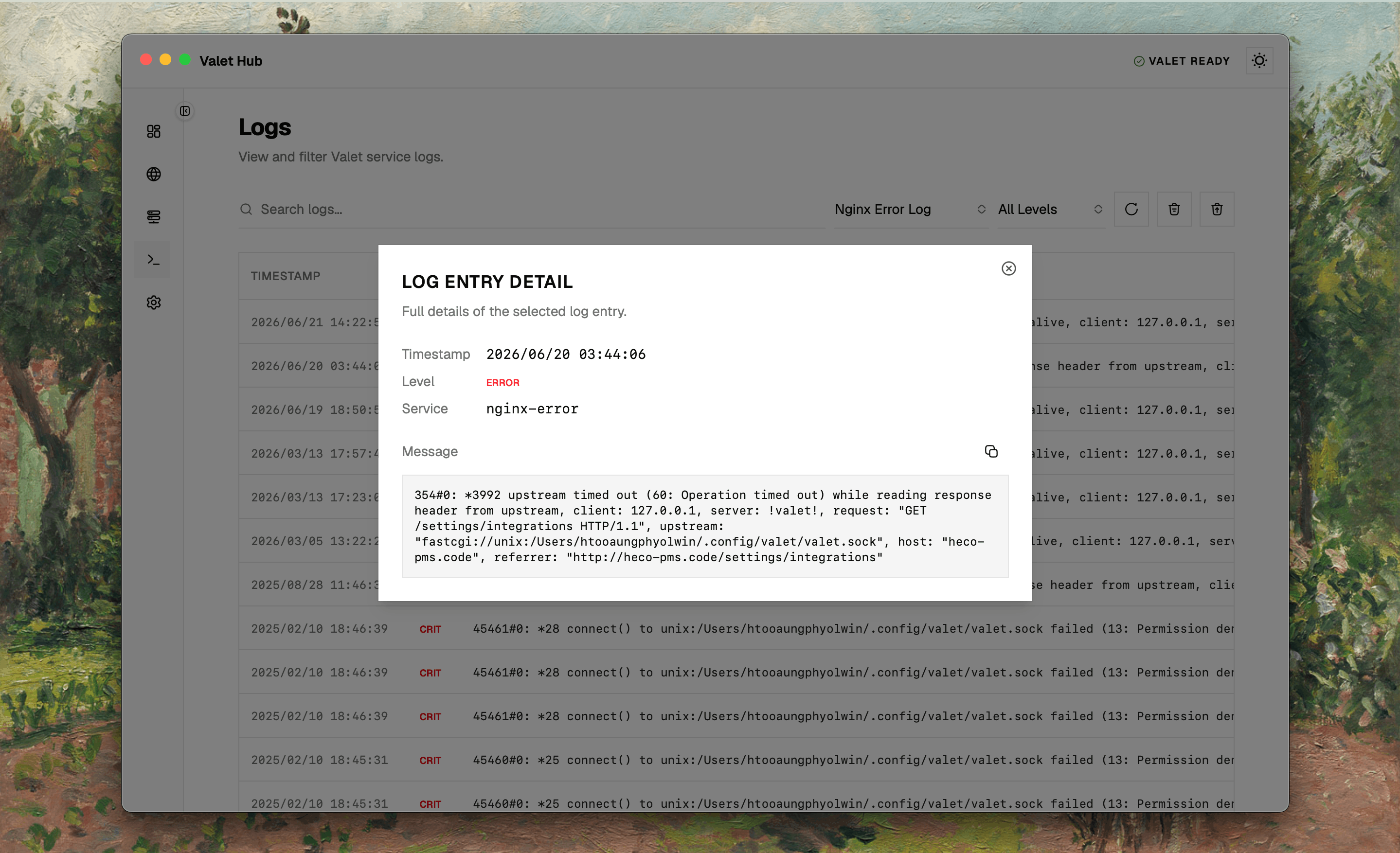
Click any row to open a detail dialog. It shows the timestamp, level, service name, and the full message in a scrollable box — useful when an error message is too long for the table view. A copy button lets you grab the message for a bug report or search.
Pagination
Choose how many entries per page (50, 100, 200, or 500). Use the navigation buttons to move between pages. Changing the source or page size resets back to page 1.
Clearing Logs
When logs get noisy, you can clear them out:
- Clear — removes all entries from the currently selected source.
- Clear All — removes entries from every source at once.
Both actions ask for confirmation before anything is deleted. A notification confirms success or reports an error.