
Settings
The Settings page organises everything you can configure into five tabs: PHP, Valet, General, Shortcuts, and Info.
PHP Tab
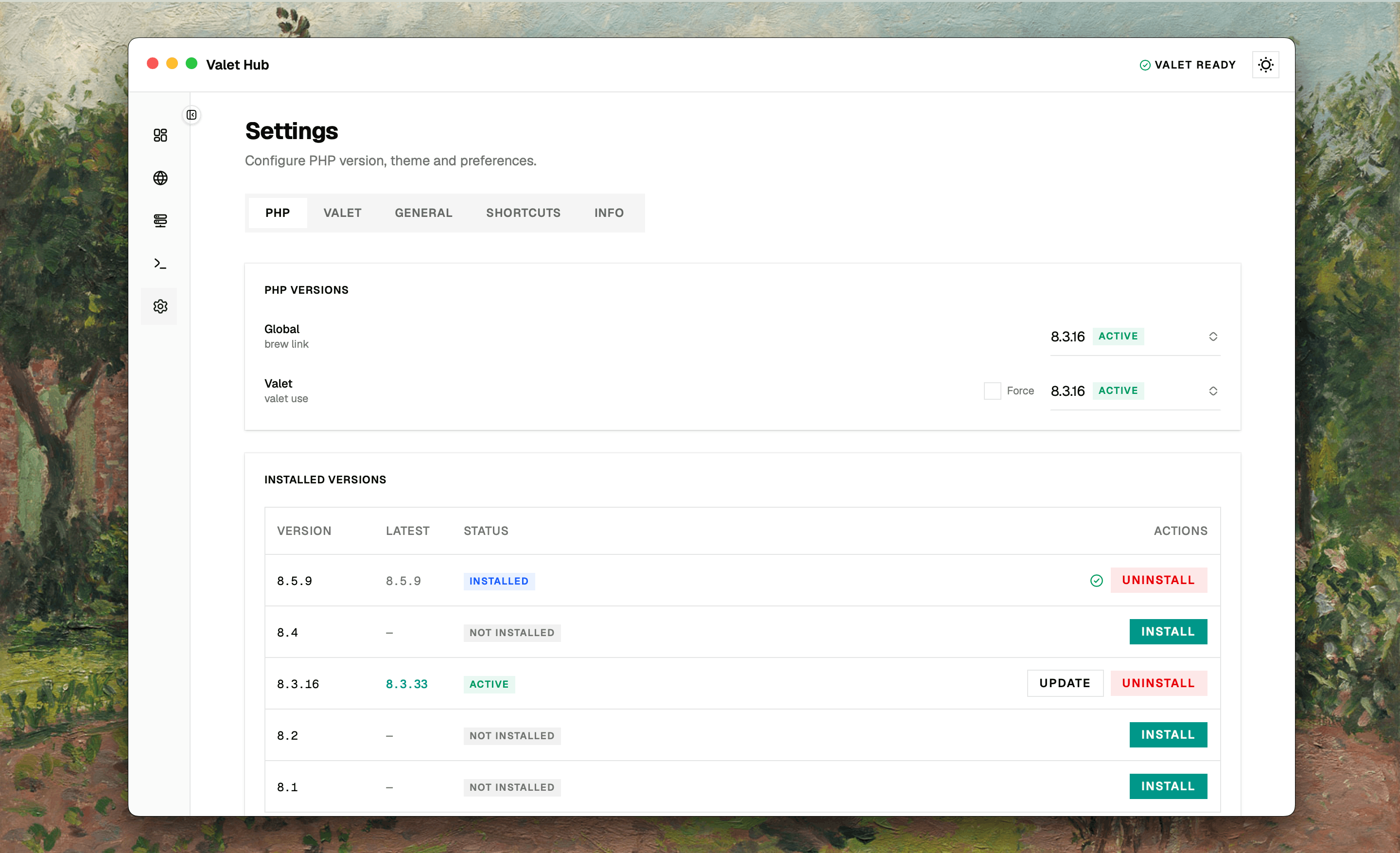
The tab is split into two parts: a PHP Versions section with two selectors that control which PHP version your sites use, and an Installed Versions table for managing every version on your system.
PHP Versions
The two selectors work together to control the PHP version Valet serves.
Global
Runs brew link php@X.Y. It controls which PHP version is linked globally on your system's PATH — the one plain php resolves to. The current active version is marked with an Active badge. Select a different version to switch.
Valet
Runs valet use php@X.Y. It switches the PHP version Valet serves to all your non-isolated sites. Select a different version to switch — useful when you want to test a site against a different PHP version without touching the terminal.
Next to the selector is a Force checkbox. When enabled, version switches run valet use php@X.Y --force. Checking it first shows a confirmation explaining what force does:
- Normally, selecting the version that's already active is a no-op.
- With Force, Valet re-links PHP, rebuilds its FPM configuration, and restarts its services even when the version is already active — handy when a version gets stuck after an upgrade or Valet keeps serving the old version.
- Sites isolated to their own PHP version (
valet isolate) are not affected. - The checkbox resets after a successful switch.
Installed Versions
Below the selectors, a table lists every PHP version available in Homebrew. Each row shows the version number (full patch, like 8.3.6), its status, and what you can do with it:
- Active — the version Valet is currently using.
- Installed — present on your system but not active.
- Not installed — available in Homebrew but not yet on your machine.
Installing a PHP Version
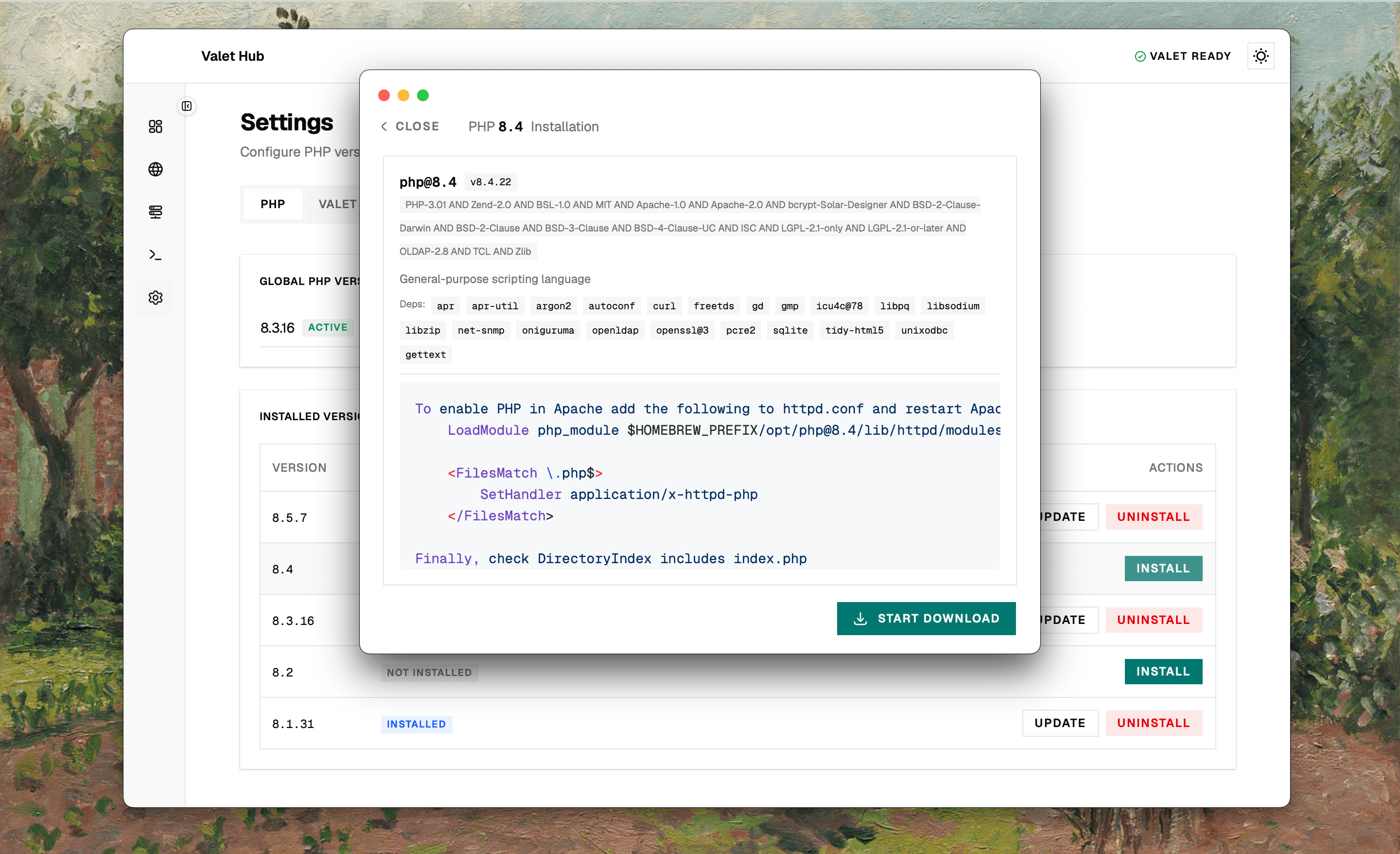
Click the Install button for any version that isn't installed. A window opens with everything you need to know before the install runs:
- Formula info — the package name, version, license, description, and dependencies. If the formula has caveats (post-install notes from the maintainer), they're shown in a syntax-highlighted block.
- Start Download — click to begin the Homebrew installation.
- Live terminal output — the real-time output from
brew installstreams into a panel with color-coded lines (blue for brew section headers, green for downloading, red for errors). It auto-scrolls as new lines appear, so you can watch the progress just like running it yourself. - Cancel — stops the installation at any time.
- Retry — appears if the installation fails, letting you try again without re-opening the window.
- Close — closes the window. A notification confirms success or reports an error.
Updating and Uninstalling
- Update — upgrades the version via
brew upgrade. A spinner shows during the process. - Uninstall — removes the version via
brew uninstall. Also shows a spinner while working.
A notification confirms success or reports an error for all operations.
Valet Tab
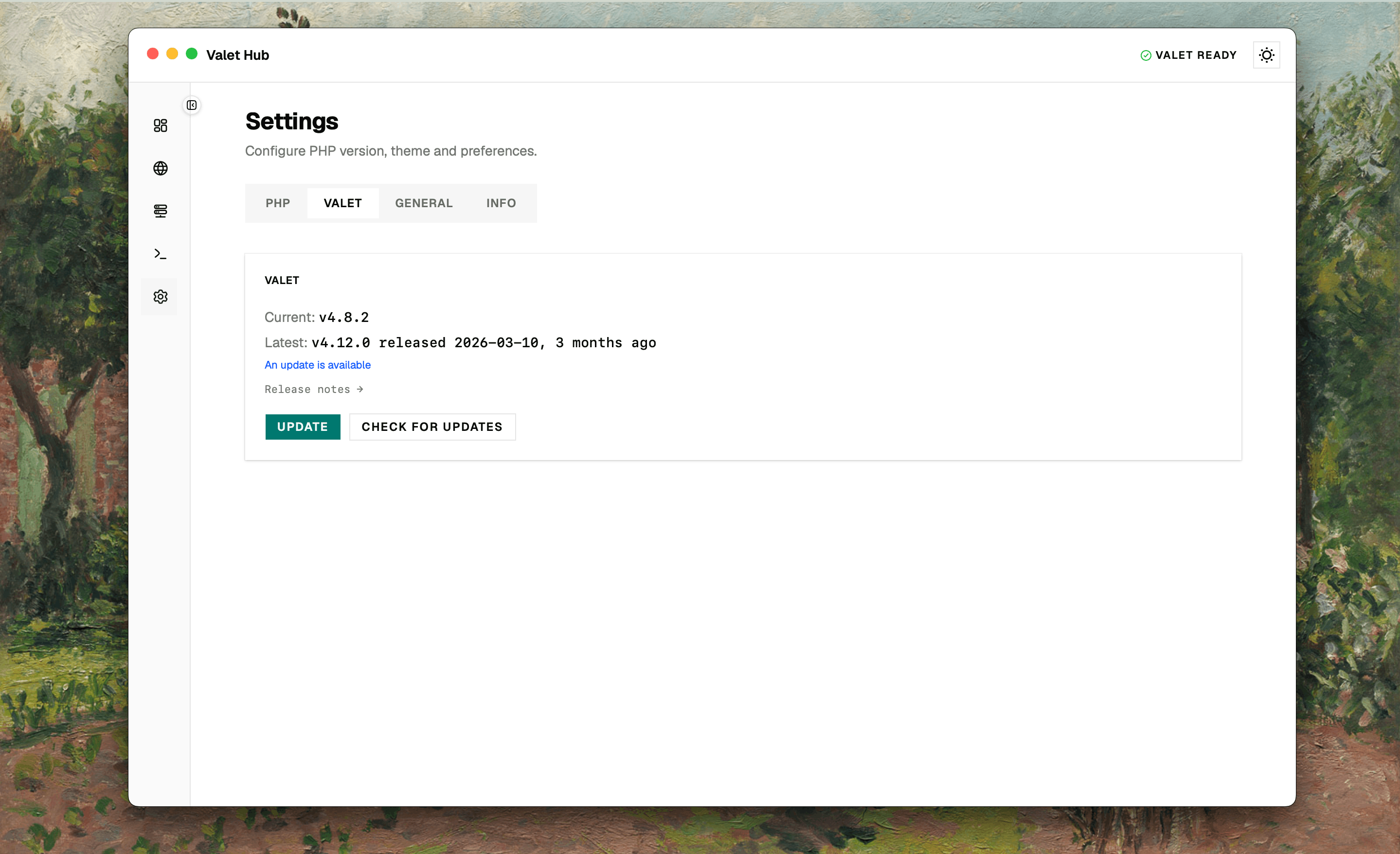
This tab shows your current Valet version and the latest version available on Packagist.
- If an update is available, an Update button appears. Click it to run
composer global update laravel/valet— no need to open the terminal. - If you're up to date, a green Up to date badge confirms it.
- Check for Updates manually refreshes the version information at any time.
- Release notes → opens the Laravel Valet releases page on GitHub.
General Tab
Domain
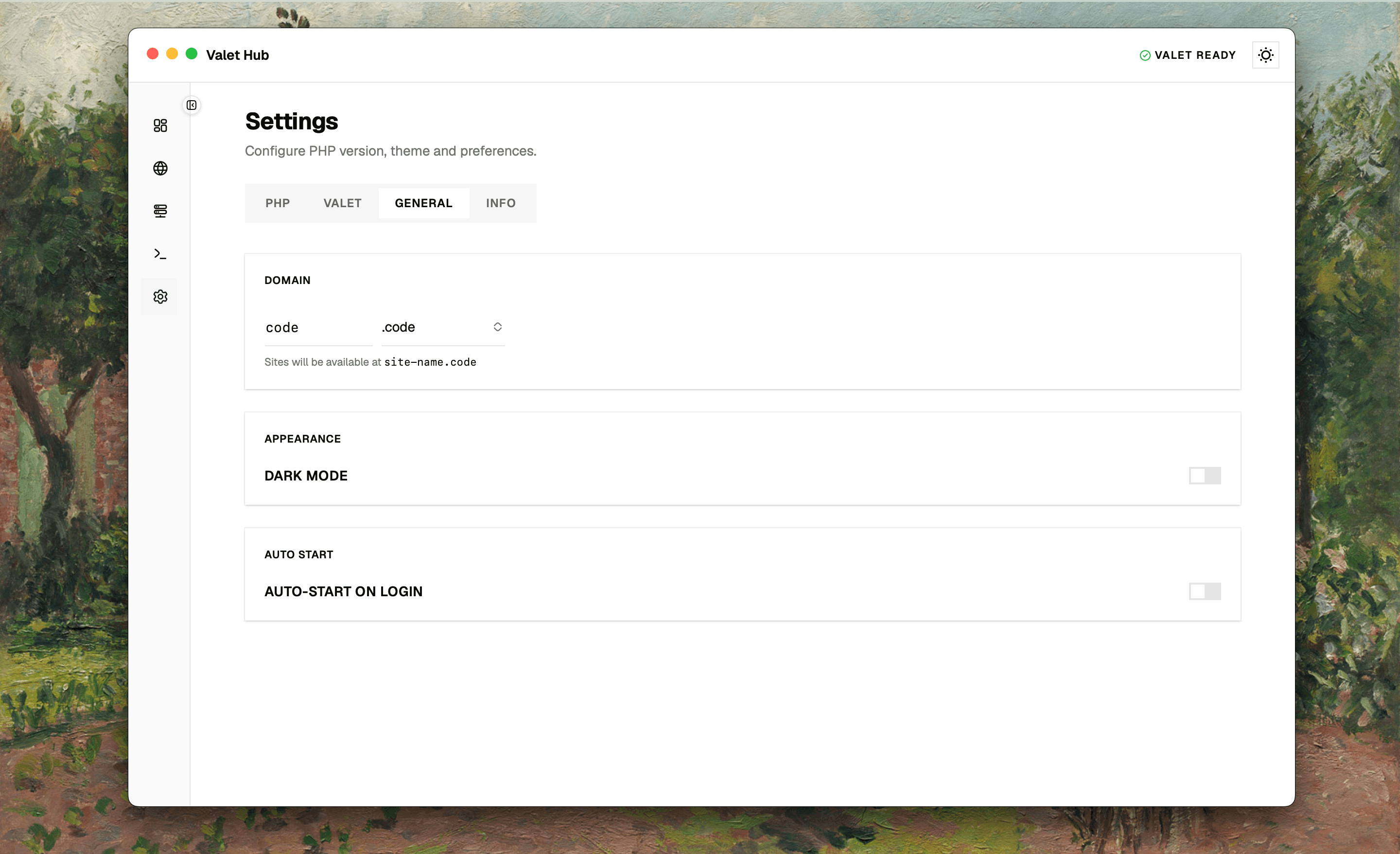
Set your Valet domain suffix — .test by default. You can type a custom value or pick from common options: .dev, .code, .test, .local, .localhost, .app. A hint below shows what your site URLs will look like with the new suffix (e.g. site-name.test).
Appearance
Toggle between Dark Mode and Light Mode. The change takes effect immediately — no page reload needed.
Auto Start
Toggle whether Valet Hub launches automatically when you log in to your Mac.
Shortcuts Tab
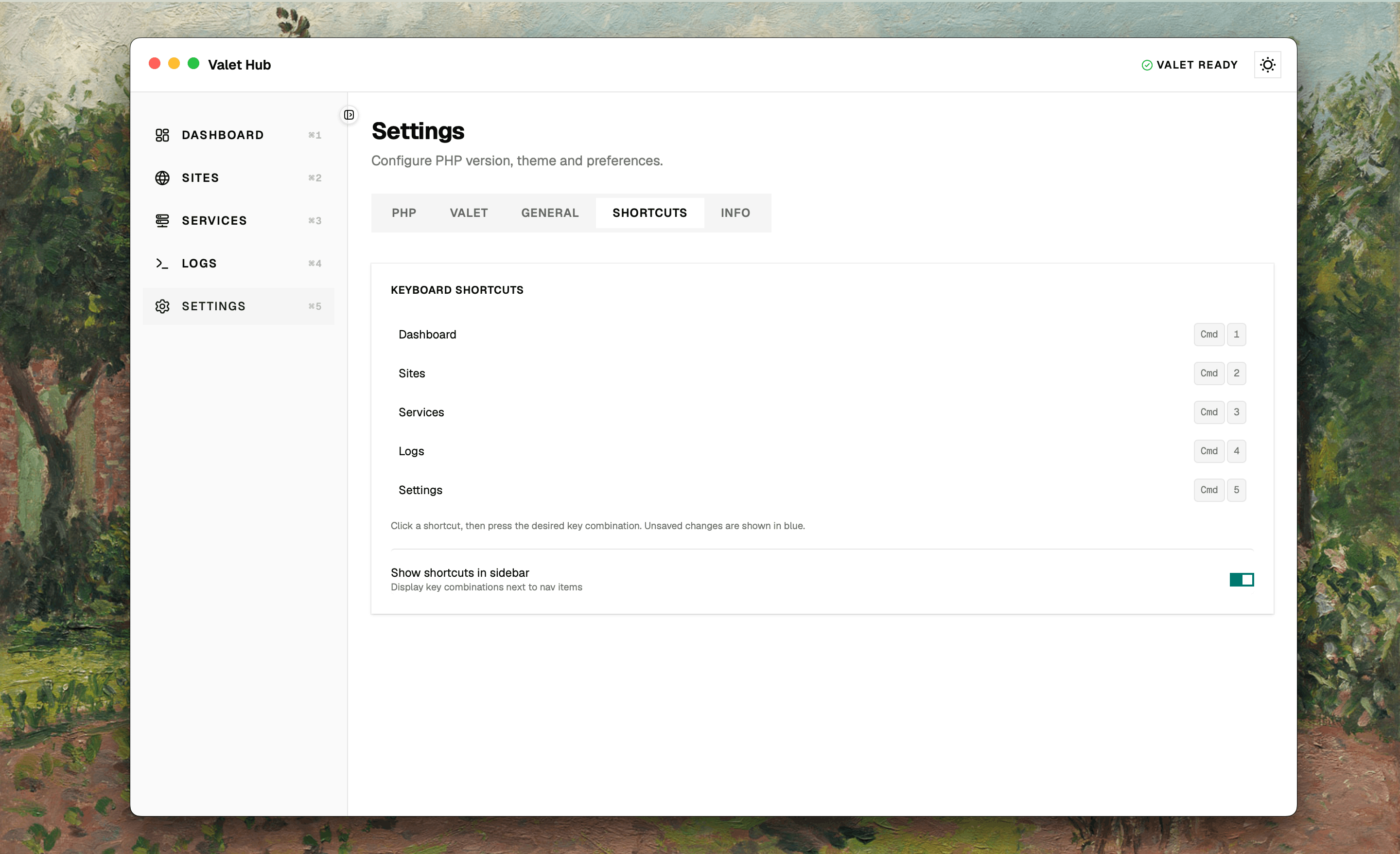
Available from v0.1.3.
Customize every keyboard shortcut used in Valet Hub. Click any shortcut, press the desired key combination on your keyboard, and it's updated instantly.
The following actions can be remapped:
| Action | Default |
|---|---|
| Dashboard | Cmd+1 |
| Sites | Cmd+2 |
| Services | Cmd+3 |
| Logs | Cmd+4 |
| Settings | Cmd+5 |
Below the list, a Show shortcuts in sidebar toggle lets you show or hide the key combination hints that appear next to each nav item in the sidebar — useful if you prefer a cleaner look once you've memorised your setup.
Click Reset to restore all shortcuts to their defaults, or Save to persist your changes.
Info Tab
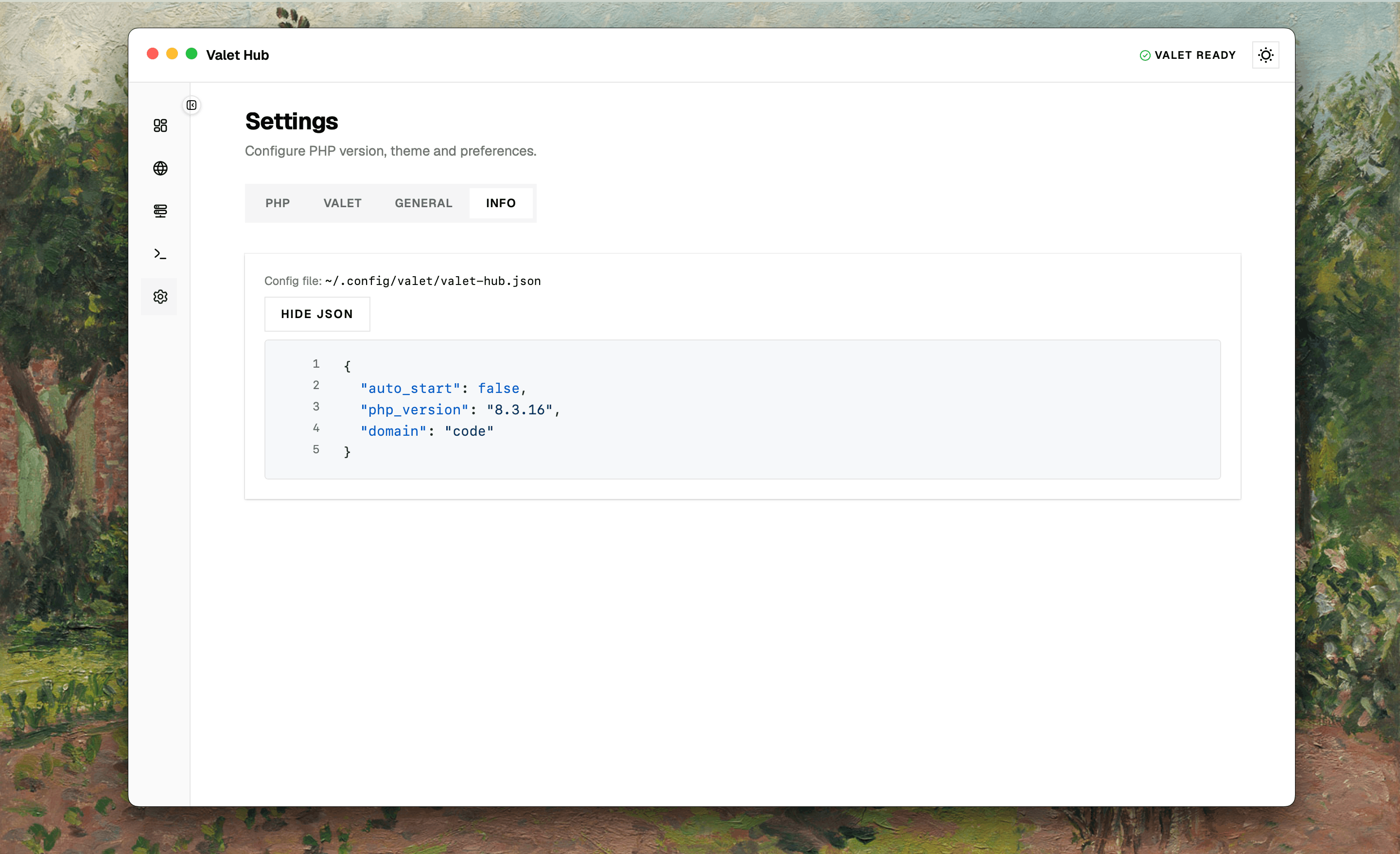
Shows your current app configuration in a readable format. Click Show JSON to view the full configuration object; Hide JSON collapses it again.