
Sites
The Sites page is where you manage every site Valet serves — linked projects, parked directories, their PHP versions, security settings, and more. Think of it as the control room for your local web environment.
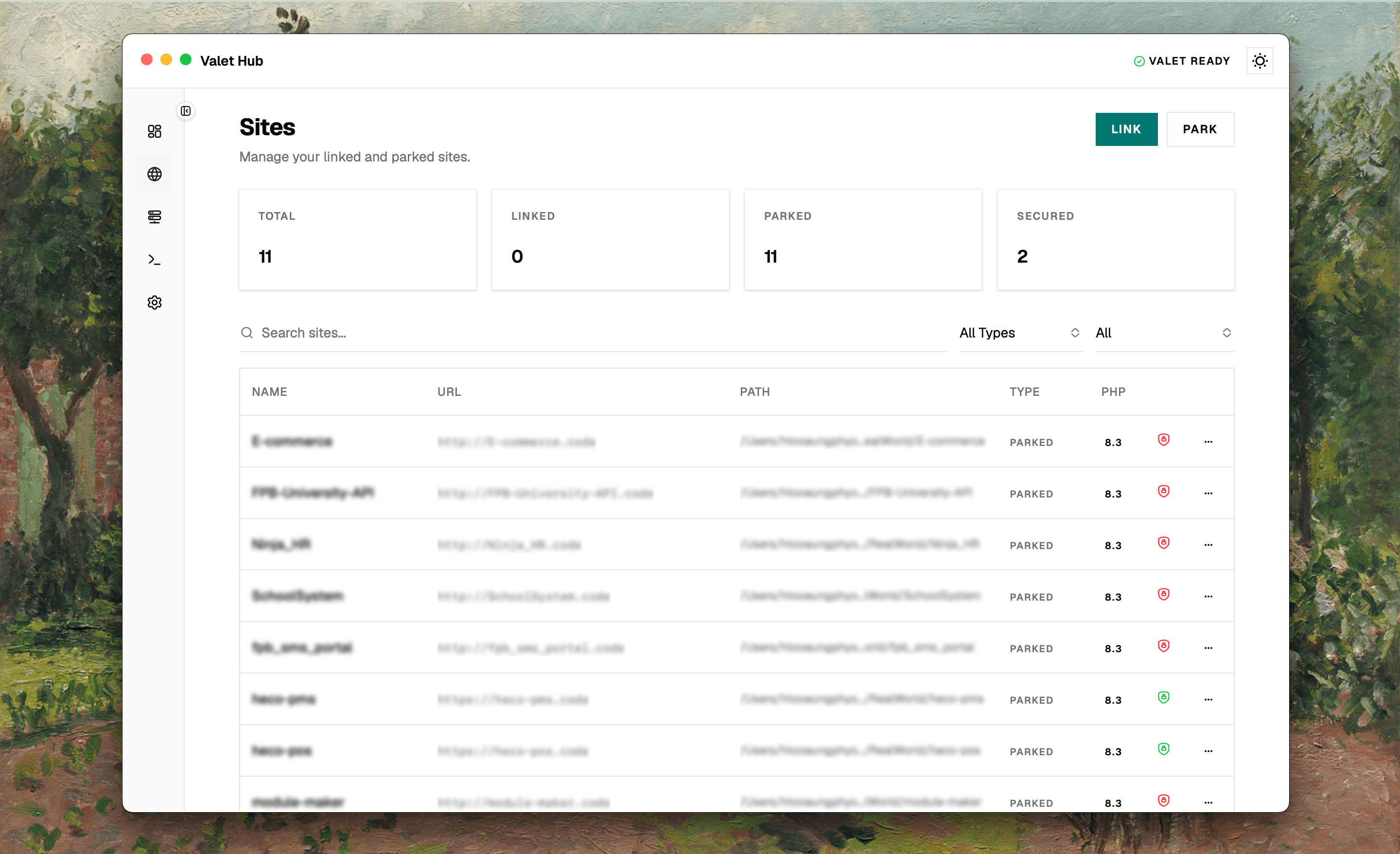
The Site List
Every site Valet knows about appears in the table. The columns give you the essentials at a glance:
- Name — click it to open the site detail page.
- URL — click to open the site in your browser.
- Path — where the site lives on your machine. Hover to see the full path.
- Type — whether it's
LinkedorParked. - PHP — the PHP version if the site is isolated, or
—if it's using the global default. - Security — a green lock if secured with TLS, red if not.
- Action — a menu with everything you can do with this site (see below).
Finding Sites
The toolbar above the table helps you narrow things down:
- Search — type to filter by site name or path.
- Type filter — show All, Linked, or Parked sites.
- Secure filter — show All, Secured, or Unsecured sites.
When a filter is active, a sub-text shows how many sites match — for example, "Showing 3 of 10 sites".
The stats bar shows total counts for All, Linked, Parked, and Secured sites, so you can see the shape of your environment at a glance.
Pagination
If you have many sites, choose how many to show per page (10, 25, or 50). Navigate between pages with the buttons below the table.
Adding Sites
Two buttons in the toolbar let you register projects with Valet:
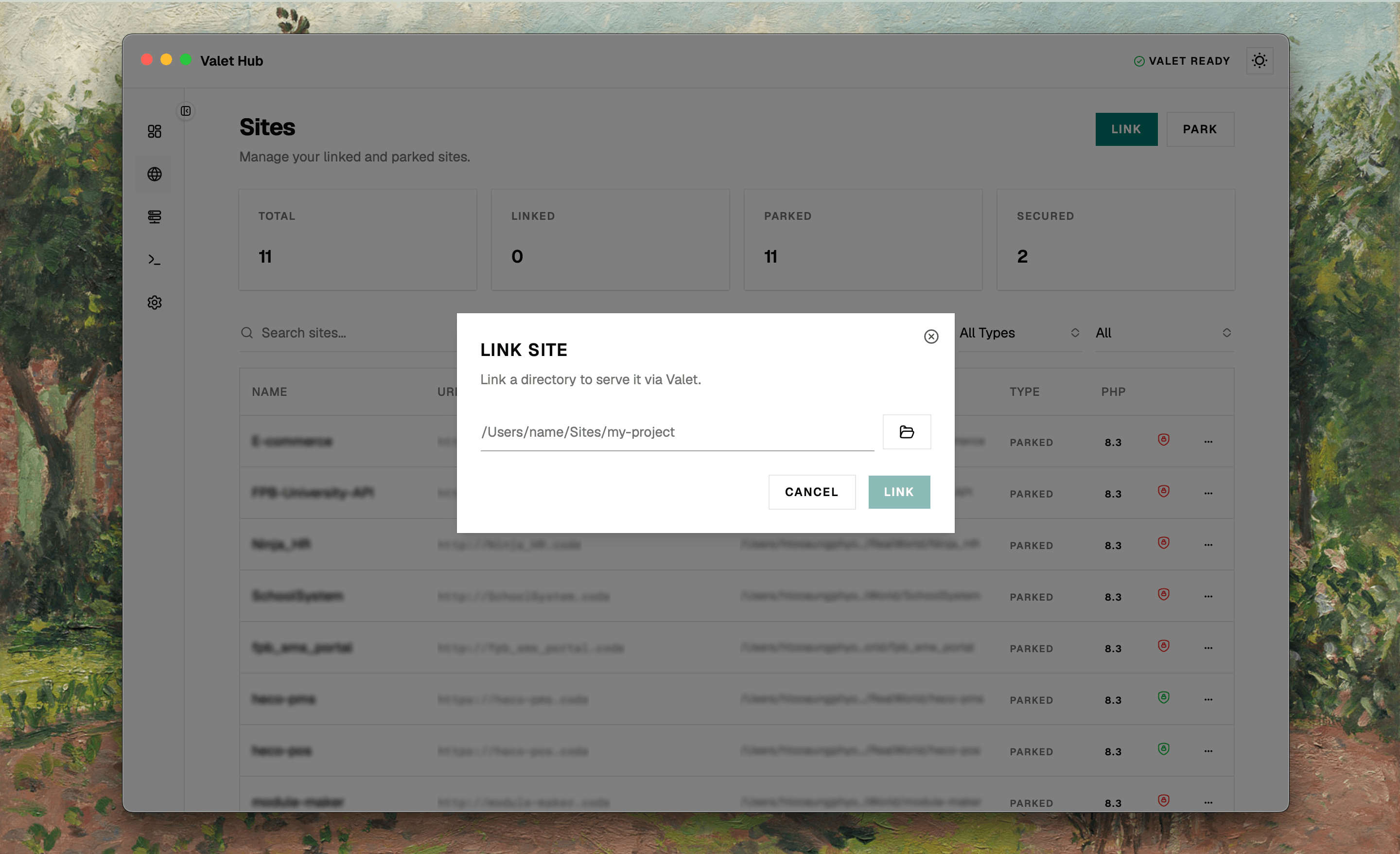
Link a Site
Use Link when you have a project folder outside any parked directory. Click the button, browse to the folder (or type the path), and confirm. Valet will start serving it.
If something goes wrong, the dialog stays open and shows an error so you can fix the issue without starting over.
Park a Directory
Use Park to register an entire directory. Every project folder inside it will be served automatically — useful when you have a dedicated projects folder like ~/Code or ~/Sites. The flow is the same: browse or type a path, then confirm.
Row Actions
Every site row has an Actions menu. This is where you'll find everything you can do with a site without opening its detail page.
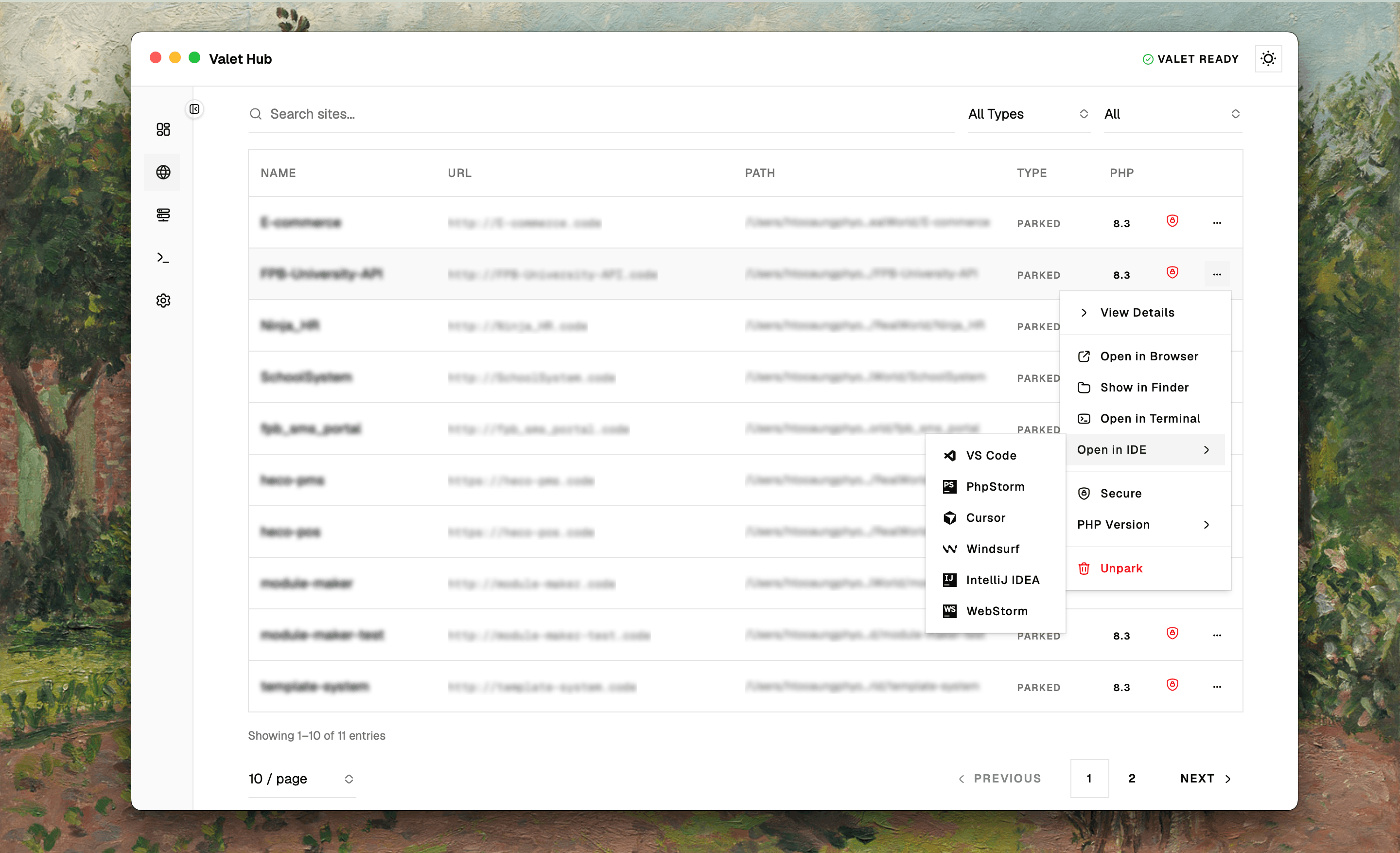
Open the site
Jump straight to your site in the browser, reveal it in Finder, launch a terminal in the project directory, or open it in your preferred editor — all from one menu. The IDE submenu lists VS Code, PhpStorm, Cursor, Windsurf, IntelliJ IDEA, and WebStorm, so you can pick whatever editor you're using today.
Configure the site
Secure / Unsecure toggles TLS on or off — handy when you're testing OAuth flows or service workers that require HTTPS.
Isolate PHP lets you pin a specific PHP version to this site. This is useful when different projects need different runtimes — maybe a legacy app on PHP 7.4 and a new Laravel project on PHP 8.3. If a version is already set, Change PHP Version lets you switch it, and Unisolate PHP removes the isolation so the site uses the global default again.
View details
View Details opens the full site detail page with tabs for configuration, routes, Git history, and more.
Remove the site
Unlink or Unpark removes the site from Valet's management. A confirmation dialog prevents accidents — Valet will stop serving the site, but your files stay untouched on disk.
Site Detail Page
Click View Details or any site name to open the detail page. It organises everything about a site into several tabs.
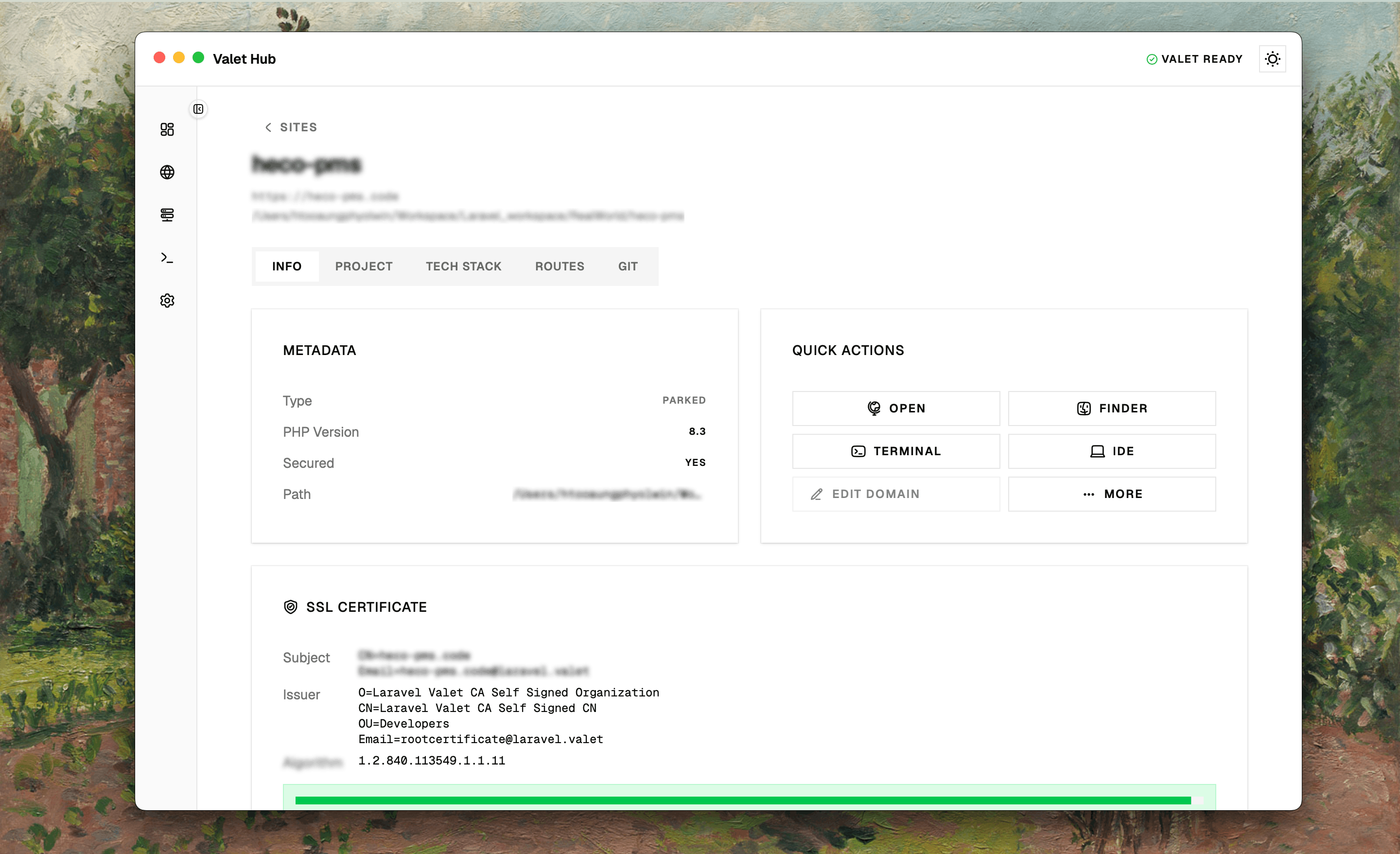
Info Tab
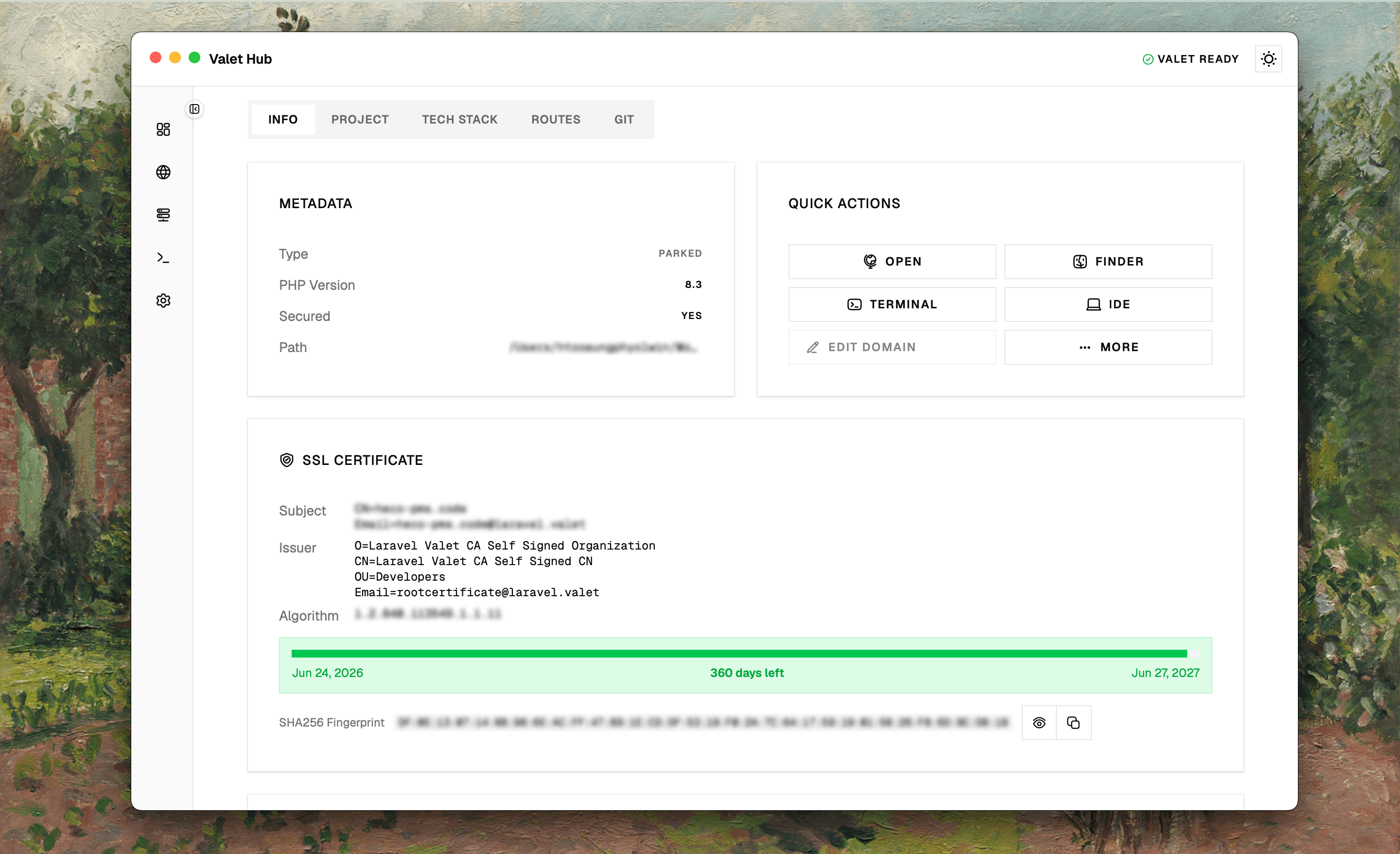
Site Info shows the essentials — site type, PHP version, security status, and the full path on disk.
Quick Actions puts your most frequent operations front and centre. Open the site in your browser, jump to the folder in Finder, or launch a terminal session right in the project directory — all in one click. The IDE dropdown has you covered with VS Code, PhpStorm, Cursor, Windsurf, IntelliJ IDEA, and WebStorm.
Beyond the basics, the More menu groups configuration actions: toggle TLS on or off, pin a PHP version just for this site, or remove an isolated version when you no longer need it.
Edit Domain: Made a typo when you linked the site? Or maybe the project name has changed. Click Edit Domain to rename it. A live preview shows the new URL as you type, so you know exactly what it'll look like. The rename button stays disabled until you pick a name that's both available and different from the current one.
Parked sites can't be renamed here — their domain comes from the directory name on disk. Rename the folder and re-park it instead.
SSL Certificate — when the site is secured, this card shows certificate details: subject and issuer information, validity period with a progress bar (green for healthy, amber for expiring soon, red for expired), and the SHA256 fingerprint. The fingerprint can be copied or toggled visible with an eye button.
Nginx Config — the site's nginx server block, rendered with syntax highlighting. You can create, view, and edit the config entirely from the app.
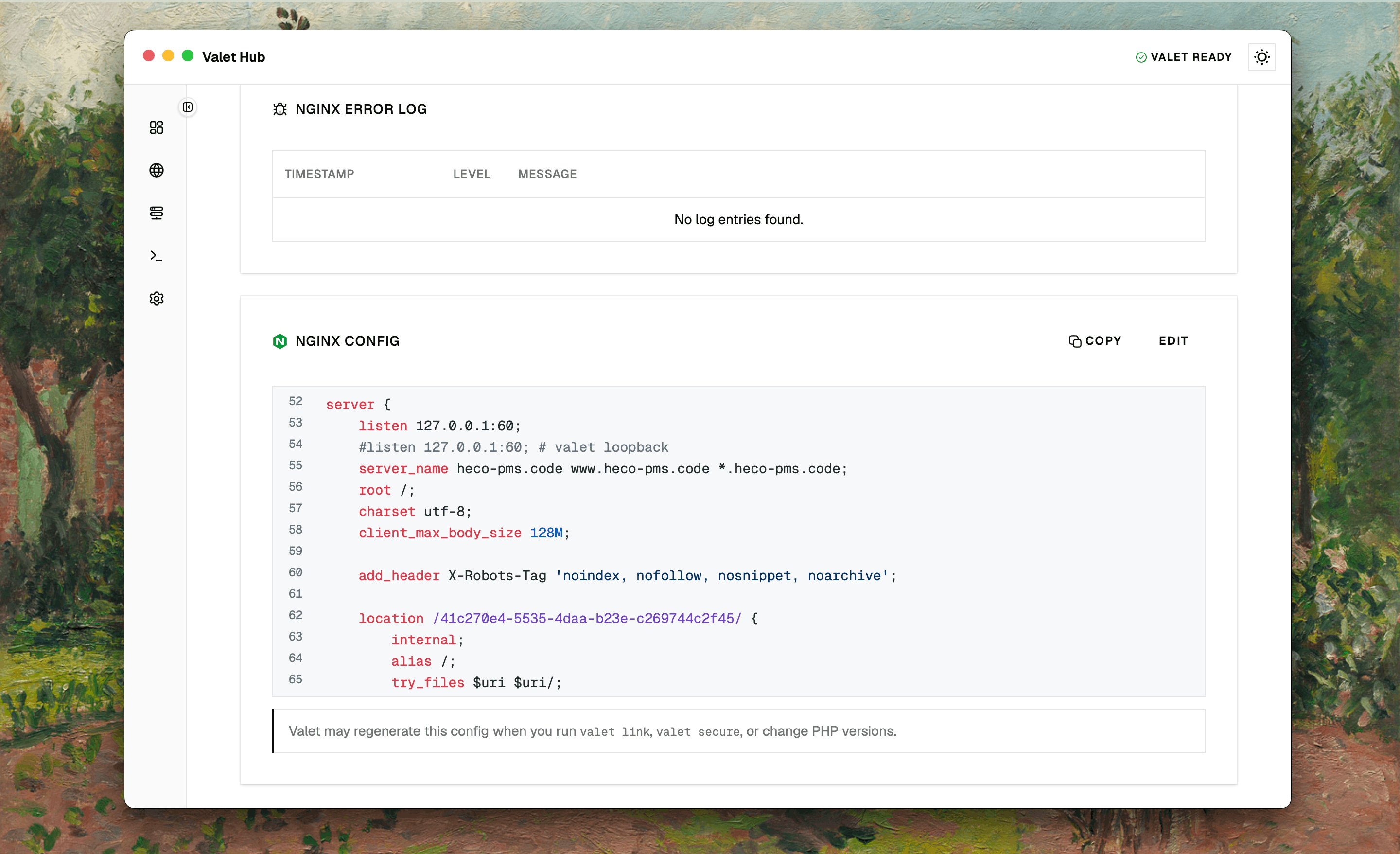
When a site doesn't have a config file yet, the card shows a Create Config button instead. Clicking it generates a sensible Valet-style default server block — rooted at the site's public directory — and writes it to ~/.config/valet/Nginx/{site}.
Click Edit to swap the viewer for a monospace textarea where you can tweak the server block directly. Save writes the file and reloads Nginx so your changes apply immediately; Cancel discards the draft.
Heads up: Valet owns these files. Running
valet link,valet secure, or switching PHP versions can regenerate a site's config, so your edits may be overwritten — the card keeps this reminder visible while a config exists.
Error Log — recent nginx error entries for this site. Click any entry to see the full details in a dialog.
Project Tab
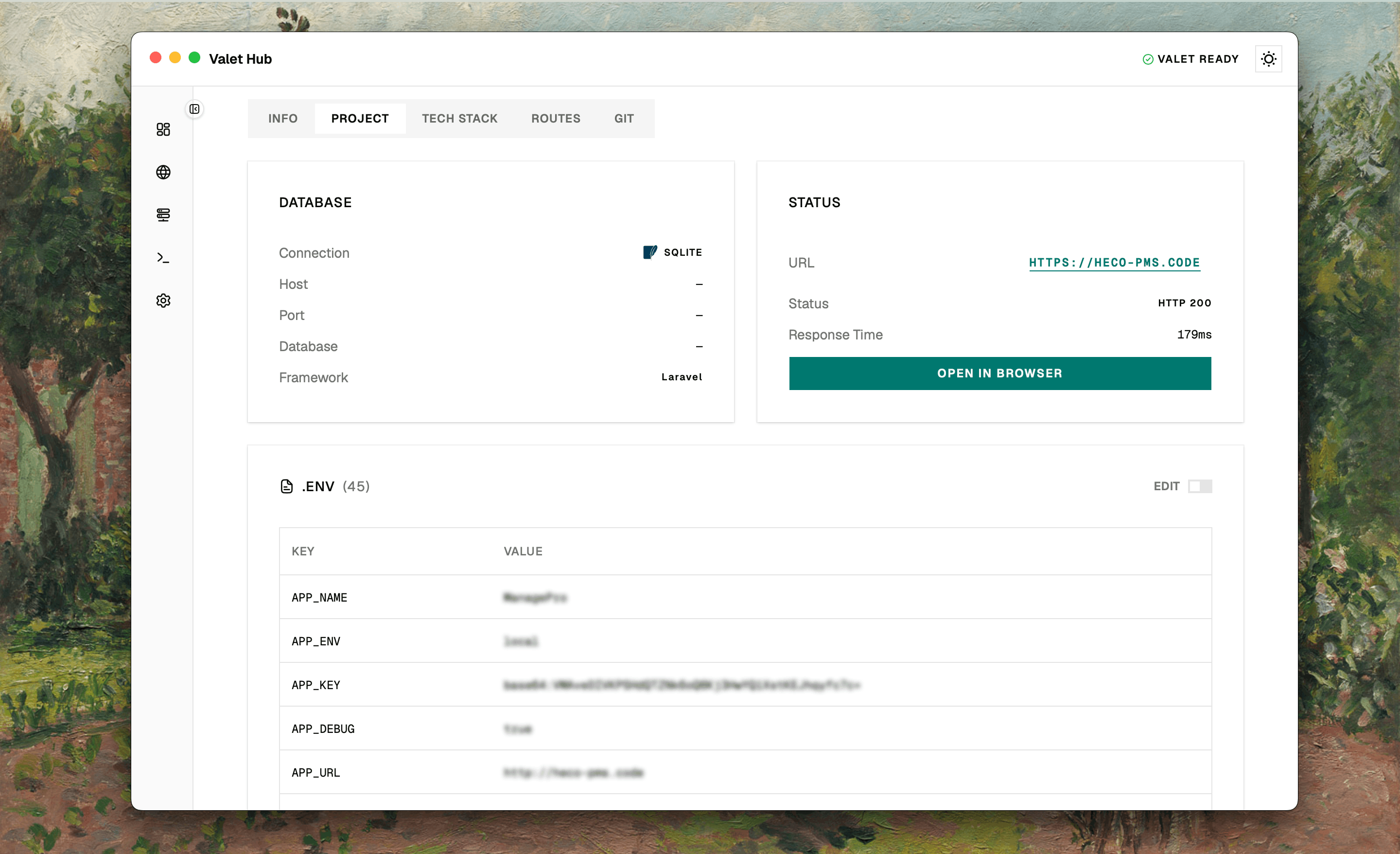
Database shows your database connection info as detected from the .env file — connection type, host, port, database name, and framework. Only appears when a .env file is found.
Status tells you if your site is actually serving HTTP. It pings the site and reports back the status code and response time. A green badge means everything's healthy; red means the site isn't responding — helpful after restarting Valet or changing configuration. The Open in Browser button lets you jump straight there.
.env Variables lists all your environment variables in a table. Hidden when no .env file exists.
Tech Stack Tab
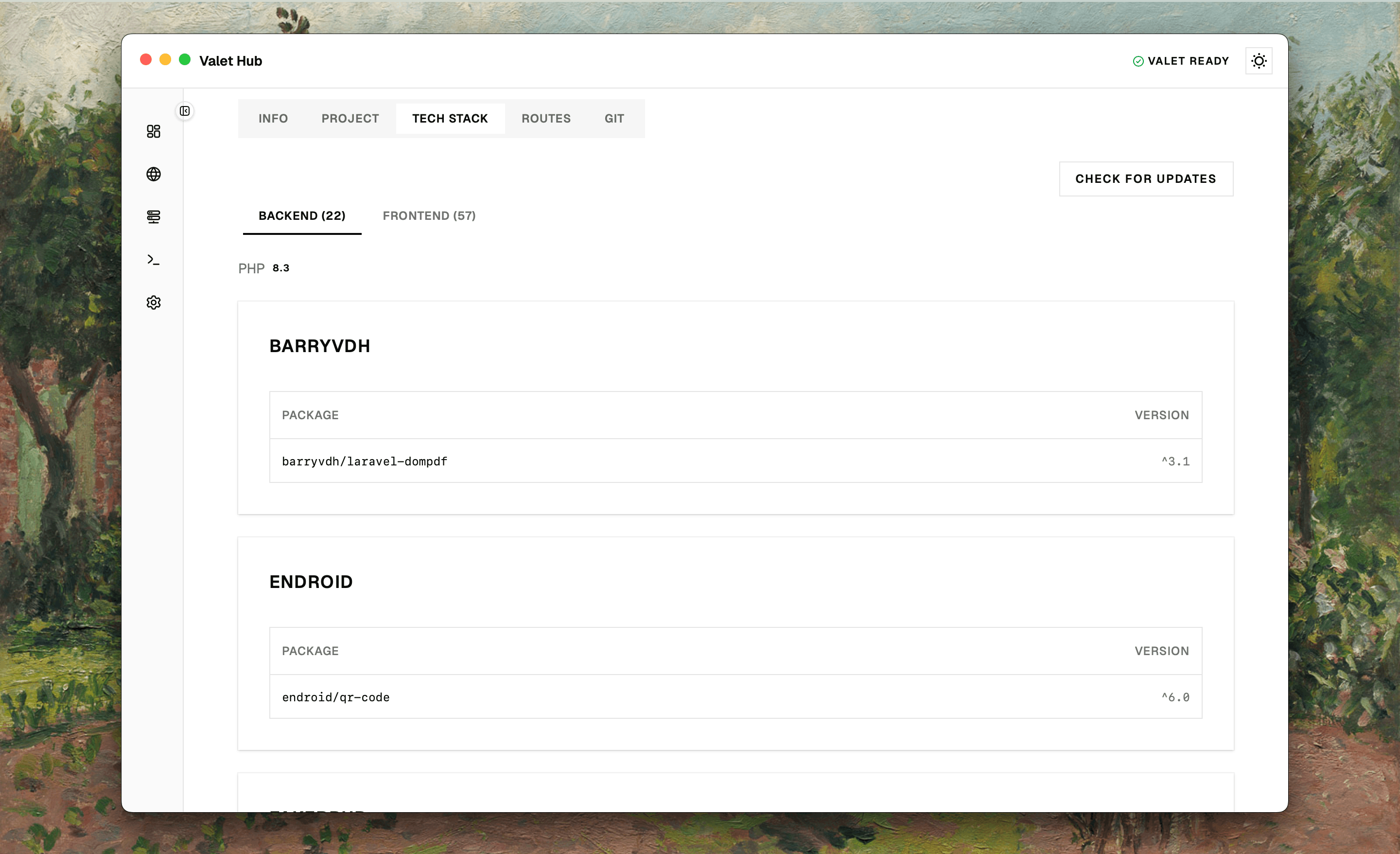
Your project's dependencies evolve fast. Click Check for Updates to see which packages have newer versions available — grouped by backend (composer.json) and frontend (package.json). Outdated packages are flagged so you can plan your next update cycle.
Backend packages are grouped by vendor. If any are outdated, a card summarises what needs updating.
Frontend packages are grouped by scope. The tab also lists available scripts from package.json.
Routes Tab
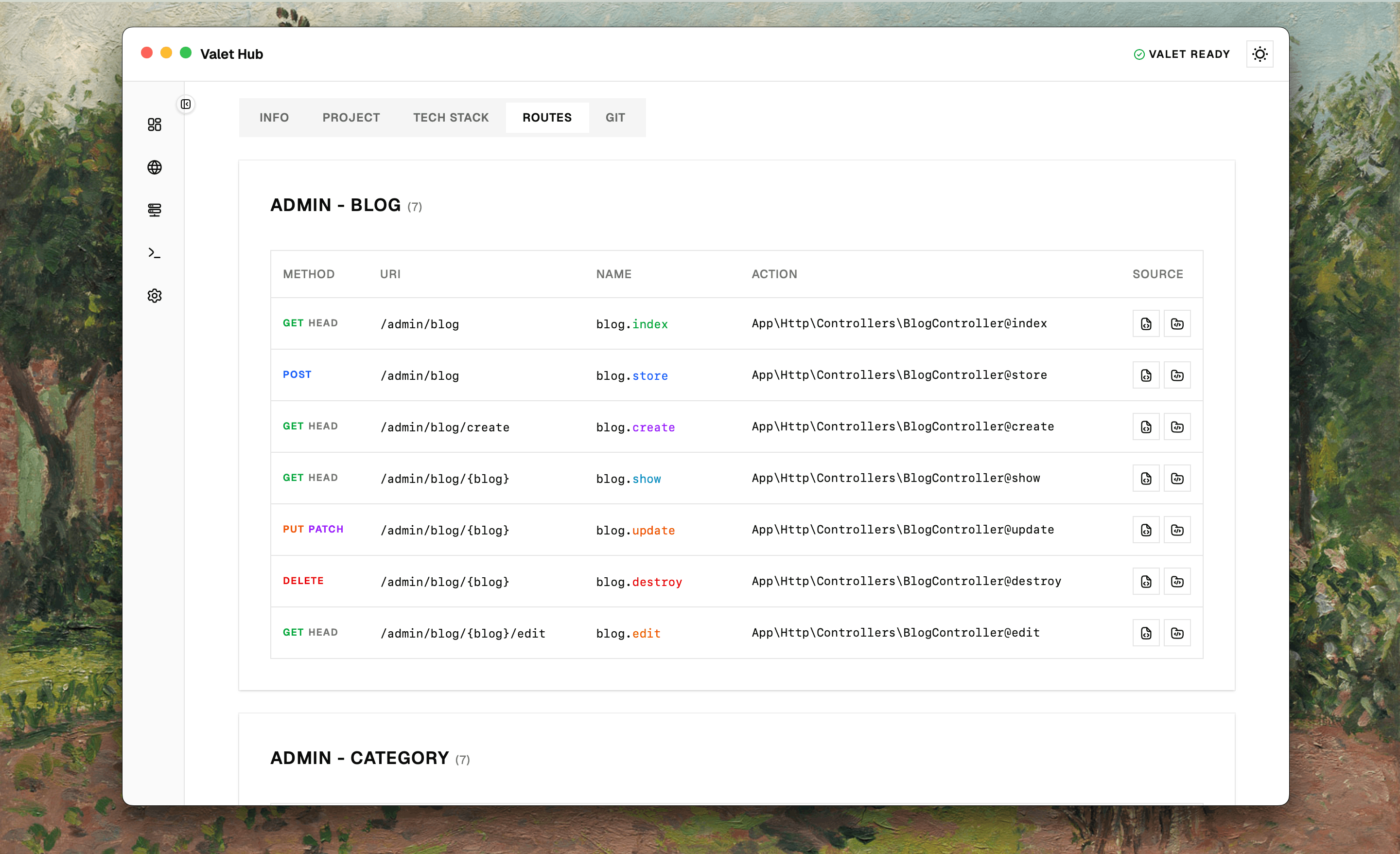
Routes load when you first click this tab — handy when you have a large project and don't want to parse routes on every page load. They're grouped by URI prefix (e.g. api/users, admin/dashboard) so you can find what you need quickly.
Each route shows its HTTP method (GET, POST, etc.), URI, name, and the controller action.
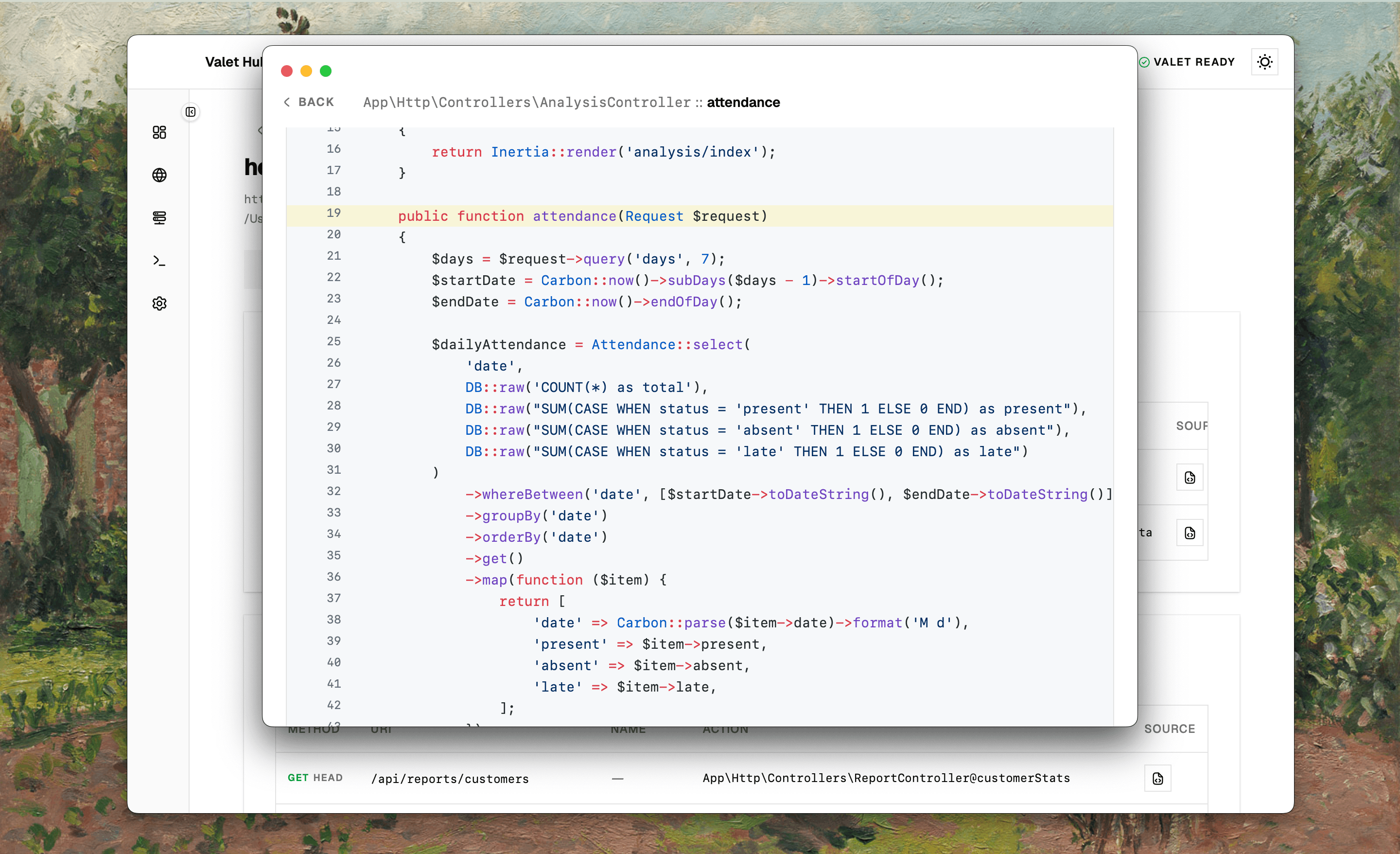
Controller Source: Click the file icon on any route to open the controller file in a separate window. The code is highlighted and automatically scrolls to the relevant method — no more hunting through files to find where a route is handled.
Resource Preview: Click the folder icon to open the associated API Resource file.
Git Tab
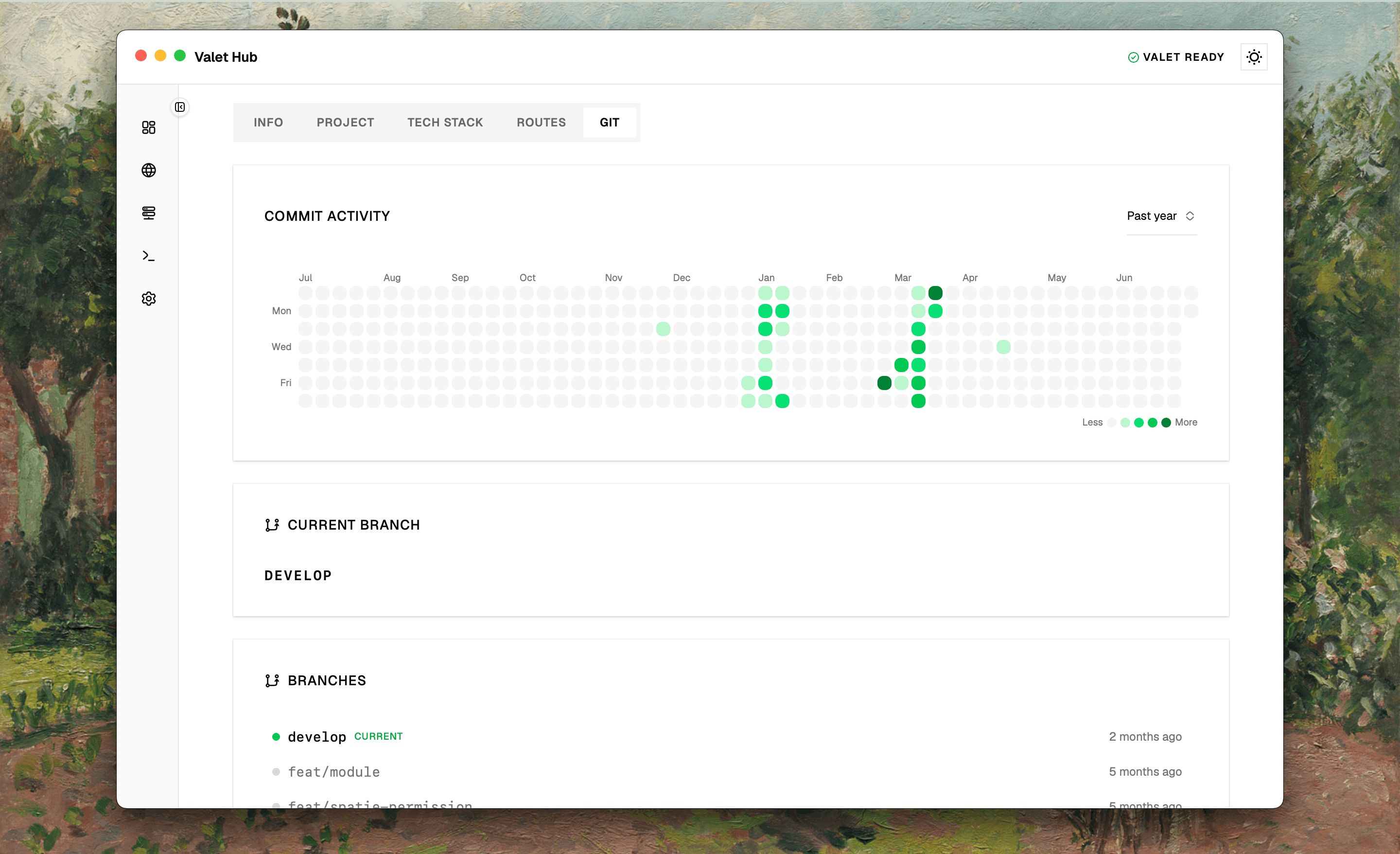
The Git tab only appears when the site is a Git repository. Data loads when you first click the tab — like Routes, this avoids slowing things down with Git operations on every page load.
Current Branch — shows the active branch as a badge.
Branch List — all local branches with the current one highlighted. Each branch shows its last commit date so you can see which ones are stale.
Commit Activity — a heatmap showing commit activity over time. Darker cells mean more commits on that day. Hover over any cell for details, and use the year selector to switch between views.
Contributors — everyone who has committed to the project, sorted by most commits first. The top contributor gets a star badge. GitHub profile links are clickable so you can jump straight to their profile.
Stats — total commits, branch count, and the remote URL (clickable to open in your browser).